
Quick orientation. If you configure BEYOND zone lists, lay out preview-plane geometry, or need round-trip CSV import/export against BEYOND, this app is for you. JD3 ZoneTools talks to BEYOND over Talk UDP (text commands) and OSC (UDP messages); both default to the local machine and can be redirected to a remote BEYOND host in Settings & Diagnostics.
Scope. JD3 ZoneTools is preview-plane and zone-structure tooling. It is not a show-control, cue-programming, timeline, or emergency-stop tool. Output-affecting work (UGC correction, projector mutes) lives in clearly separated workspaces with explicit guards.
§ 01 Quick start
- Install and launch JD3 ZoneTools. The main window opens on the Preview Builder tab.
- Open Settings & Diagnostics and confirm the Connections block points at your BEYOND machine. Defaults are loopback (
127.0.0.1) on Talk UDP16062, OSC Send Port8000, and OSC Receive Port7000. -
In Preview Builder, populate the zone list using one of:
- Import from BEYOND — probe a live BEYOND instance.
- File → Import CSV… — load a BEYOND zone CSV export.
- The section authoring row in Zone Tools — build a profile row-by-row.
- Lay zones out on the canvas, then send updates with Send Selected or Send All. Watch the Apply Diagnostics panel in Settings & Diagnostics for per-message results.
That's the operator round-trip. The rest of this manual covers the authoring tools, helper-group generation, and the output-affecting workspaces (Zoning, Mutes).
§ 02 The main window
The main window has five tabs across the top:

| Tab | Purpose |
|---|---|
| Preview Builder | Primary surface. Zone list, canvas, layout/spacing tools, Group Generator, and the apply controls. |
| Zone Tools | Zone-list authoring helpers and CSV-focused workflows. Shares the underlying profile model with Preview Builder. |
| Zoning | Output-plane UGC correction with a cumulative warping correction-grid preview, test-frame controls, and laser-output controls. Runs standalone or as part of a multi-node remote-authority session. |
| Mutes | Live projector mute/unmute (immediate) and a guarded Edit-mode workspace for configuring pair/master groups and projector placement. |
| Settings & Diagnostics | Connections, I/O Health, Apply Diagnostics, manual entrypoints, app preferences, remote session, and reset flows. |
The menu bar adds File, Edit, Settings, Tools, and Help menus. Full enumeration is in Reference: menus.
§ 03 Preview Builder
Preview Builder is the primary surface for authoring zone-list profiles and laying out preview-plane geometry.

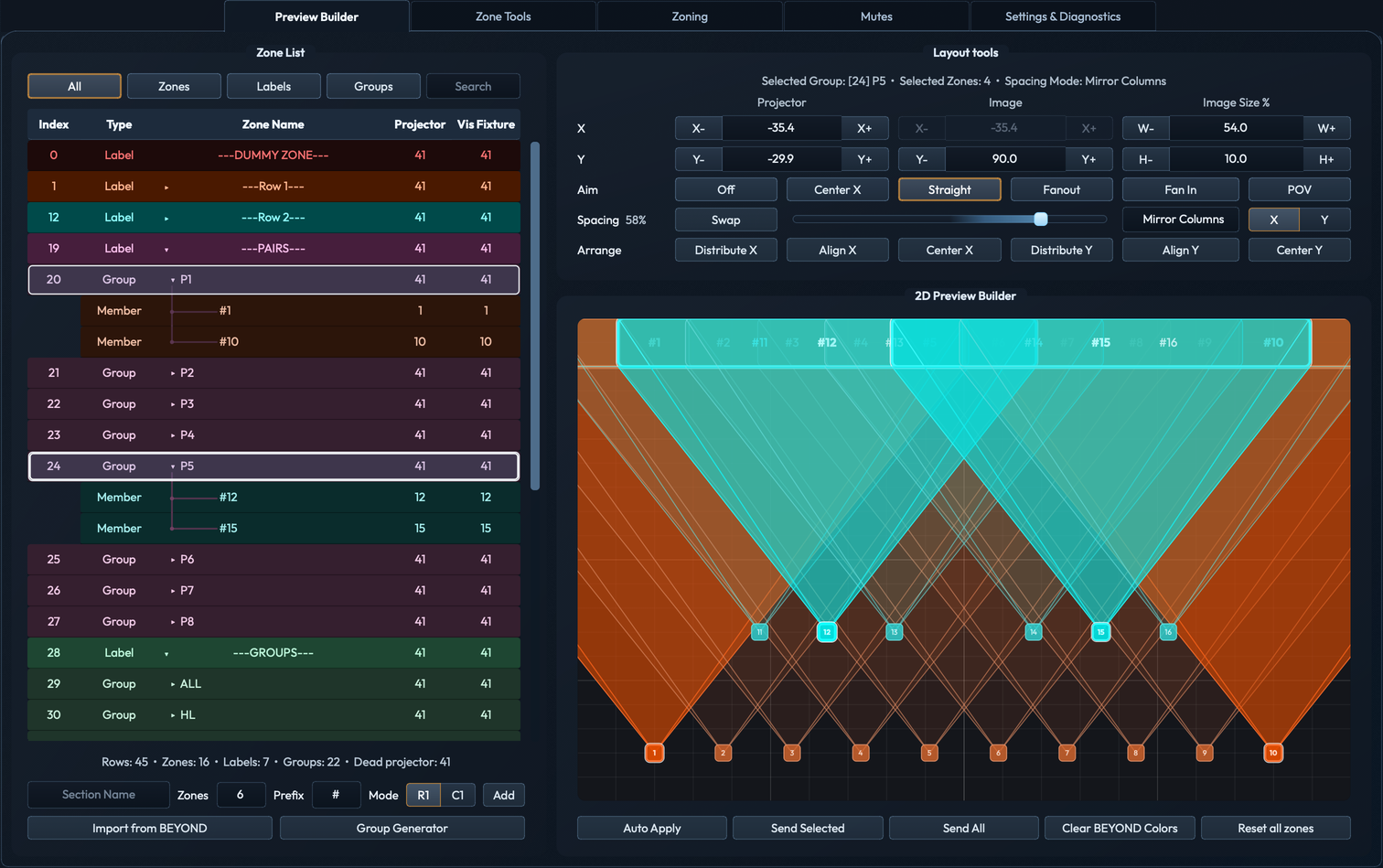
3.1 Zone list and canvas
The left card holds the zone list. Each row is one of three types:
- Zone — an addressable BEYOND zone with a name, projector index, and preview-plane geometry.
- Label — a section divider in the canonical
---SECTION NAME---form. Labels carry no geometry and define section boundaries for downstream grouping. - Group — a member-relationship row used for batch organization. Group rows hold an
Also tolist referencing zone names; export validates that every member resolves.
Selecting one or more zone rows highlights them on the canvas and vice-versa. Inline geometry edits (drag, resize, nudge) on the canvas push back into the row's spinners and into the undo stack.

Fixture highlight
Selecting any row in the zone list — zone, label, group, or member — triggers fixture highlight: the row's assigned color is pushed to the corresponding BEYOND zones over the active OSC transport, recoloring the actual laser output on stage in real time. As you tab or click through the list, the beam color tracks your selection, letting you confirm on the physical rig which projectors map to which zone entries without leaving the app.
Group rows highlight all member zones simultaneously. The Via Fixture column in the zone list reports the projector index being colorized for each row. Fixture highlight clears automatically when a Send Selected, Send All, or Clear BEYOND Colors is issued, or when the selection is dismissed.
3.2 Importing zones (Build, BEYOND, CSV)
You can populate a fresh profile in three ways:
- Build profile — start from a blank profile and use the section authoring row (see below) to add zones one section at a time.
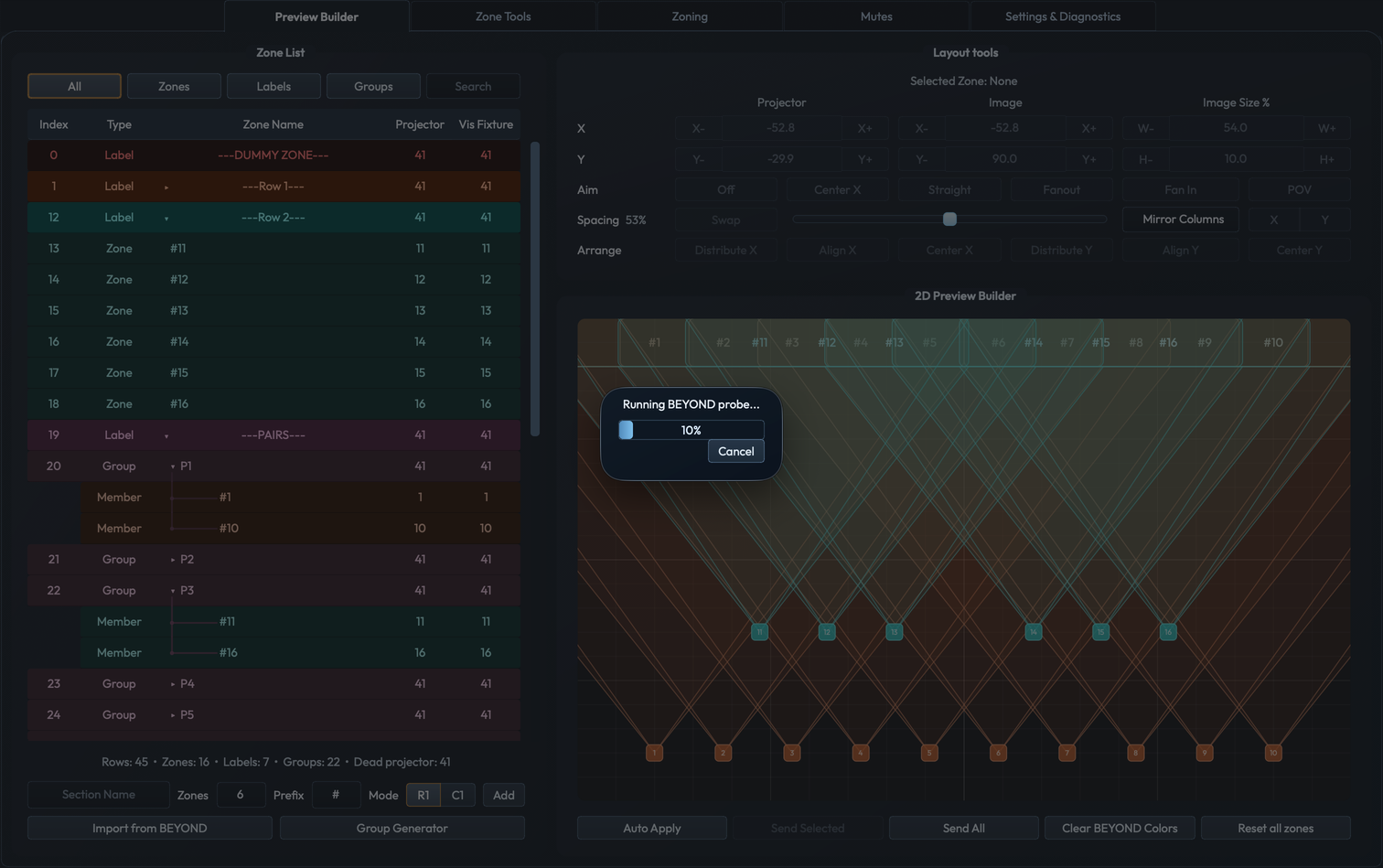
- Import from BEYOND — probe a live, reachable BEYOND instance and pull its current zone list. The progress dialog reports per-index status and respects the Live probe start index and delay configured in Settings & Diagnostics.
- File → Import CSV… — load a BEYOND zone CSV export. JD3 ZoneTools preserves intentional label rows, group rows, dummy zones, and dead-projector rows on the way in and back out.
Build compatibility. When connected to BEYOND, JD3 ZoneTools warns on CSV export against builds below 2044 that nativeAlso toimport is not supported. Disconnected exports are silent. Match your operator BEYOND build to 2044+ if you rely on round-tripAlso toimport.
3.3 Section authoring
The section authoring row at the top of Preview Builder (and Zone Tools) builds a labeled section in one click:
- Section Name — a free-text label that becomes the
---SECTION NAME---divider row. - Zone Count — number of zones to create under the section (default
8, range0–999). - Name Prefix — single-character prefix for the generated zone names.
- Layout Mode —
R1(row) orC1(column). Toggles between a horizontal projector lane and a vertical projector stack. - Add — appends the section divider plus the configured zones to the current zone list.

3.4 Group Generator
Group Generator (button in the Preview Builder section ops row) opens an embedded review card inside the left Zone List card. The generator reads the current projector layout and proposes helper rows across four families:
- Pairs — mirrored pair groups across the rig.
- Groups — global lane-style groupings, including
CENTER,WINGS, andCENTERED(when one or more source zones sit on projector-originX=0). - Columns — mirrored column groupings.
- Pixel Maps — three whole-rig maps (
X Map,Y Map,XY Map) whoseAlso toorder defines how the map traverses the rig.
The review surface uses a unified row list: one row per generated output with an include checkbox, name, member zones, and a regen action. Family chips at the top filter the list without changing what will be generated. Active chips, focus actions, and map-mode buttons share an amber-ring active state.

editing focus (amber-ringed), so its corresponding canvas overlay is active. The footer summary tracks how many helpers Generate will write into the zone list.Family include and row include
- Family checkbox in each section header includes or excludes the whole family from bulk Generate. Family rows stay available for preview and row-level regeneration even when unchecked.
- Section header
all/noneselect or clear every row in that family. - Row checkboxes include or exclude individual generated outputs (e.g.
G1,G2,ODD,EVEN). - Family and row include states persist when the generator is reopened.
Focus and live preview
- A section-header
focusaction activates that family's live canvas editor — vertical/horizontal divider guides, color-coded bucket fills, and inline bucket-count controls overlay the preview. - Click
editingagain to clear focus and remove the overlay. - If the focused family is unchecked while another editable family remains selected, the next available editor becomes active automatically.
- Click any generated output row to highlight its member projectors in the preview before applying.

focus: color-coded P-bucket tabs sit over each projector X-stack, with vertical divider guides between buckets. Drag a divider to widen or tighten a bucket before generating.Bucket count controls
Bucket count − / + controls appear inline in the matching section header when that family has an adjustable preview overlay. Pixel Map controls appear inline on the X Map, Y Map, and XY Map rows; XY Map stacks its X and Y bucket controls.
P Buckets— pair count. Stepping cycles through coherent mirrored-lane presets, so some counts may be skipped. Bucket changes group whole X-position stacks; uneven splits place the extra mirrored lane toward center.C Buckets— column count. Merges or restores whole left-to-right column stacks.- Pixel map buckets — change map ordering only. They do not create per-bucket map rows;
X Map,Y Map, andXY Mapkeep separate bucket layouts.
Drag a divider between bucket regions to widen or tighten before generating. Divider drags snap between projector X stacks; they do not split a vertical stack that shares the same X position.
Reset P Boundariesrestores the math-based pair recommendation for the open review session.Reset C Boundariesrestores the column recommendation.
Per-row regen and helper-bucket rebuild
- A row's
regenaction rebuilds only that generated row from the current layout, preserving sibling generated rows and any manual group rows in the same helper bucket. - Right-click a helper bucket label row in the zone list (e.g.
---PAIRS---,---SECTION A PAIRS---) and choose Rebuild Groups to open the generator scoped to that bucket. Source-zone label rows do not expose this action.
Pair fallback on column rigs
On column-style rigs, default Pairs start from mirrored column pairs instead of one projector per pair. If detected columns do not cover every source projector, pair generation falls back to canonical mirrored pairs so outliers remain included.
Footer summary and Generate
The footer summarizes how many pairs, groups, columns, and maps will be generated. Generate writes only the checked families and checked rows into the zone list. Long member lists scroll horizontally inside the review list rather than expanding the embedded card.
3.5 Sending preview updates
Five buttons sit in the Preview Builder apply controls row:
| Button | Behavior |
|---|---|
| Auto Apply | Toggle. When on, drag/spacing/nudge/geometry edits dispatch automatically with debounce. |
| Send Selected | Send preview updates for the currently selected zone rows only. |
| Send All | Send preview updates for every zone in the active profile. |
| Clear BEYOND Colors | Clear preview colors written to BEYOND for the active profile, leaving geometry untouched. |
| Reset all zones | Reset preview-plane state on every zone in the active profile. |

Preview updates target the /b/Zone/{index}/Preview/* OSC endpoints — preview-plane only. They do not alter live laser-output safety geometry. See Safety, scope, and data.
Per-message and summary results stream into the Apply Diagnostics panel in Settings & Diagnostics.
3.6 Stage plot overlay
A reference image (PDF / PNG / JPG / BMP) can be loaded behind the canvas as a stage plot overlay for visual placement context.
- File → Load Stage Plot Overlay… — pick an image file.
- File → Edit Stage Plot Overlay… — open the overlay editor (position, scale, opacity).
- File → Clear Stage Plot Overlay — remove the overlay.
The overlay is purely visual reference; it is not exported to BEYOND or written into the zone list.

§ 04 Zone Tools
Zone Tools shares the zone-list/profile model with Preview Builder and exists for table-level editing when the canvas is not the right fit:
- Direct row-type edits via context menus (
Zone↔Label↔Group). - Section grouping and spatial ordering of an existing list.
- CSV-focused round-trip work, including BEYOND-style projector assignments, dummy zones, and dead-projector rows.
- Invert helper for vertical-scale synchronization across paired projectors.
The same authoring controls (Section Name / Zone Count / Name Prefix / Layout Mode / Add) are available, plus Import from BEYOND and Group Generator entry points.
Spatial Order
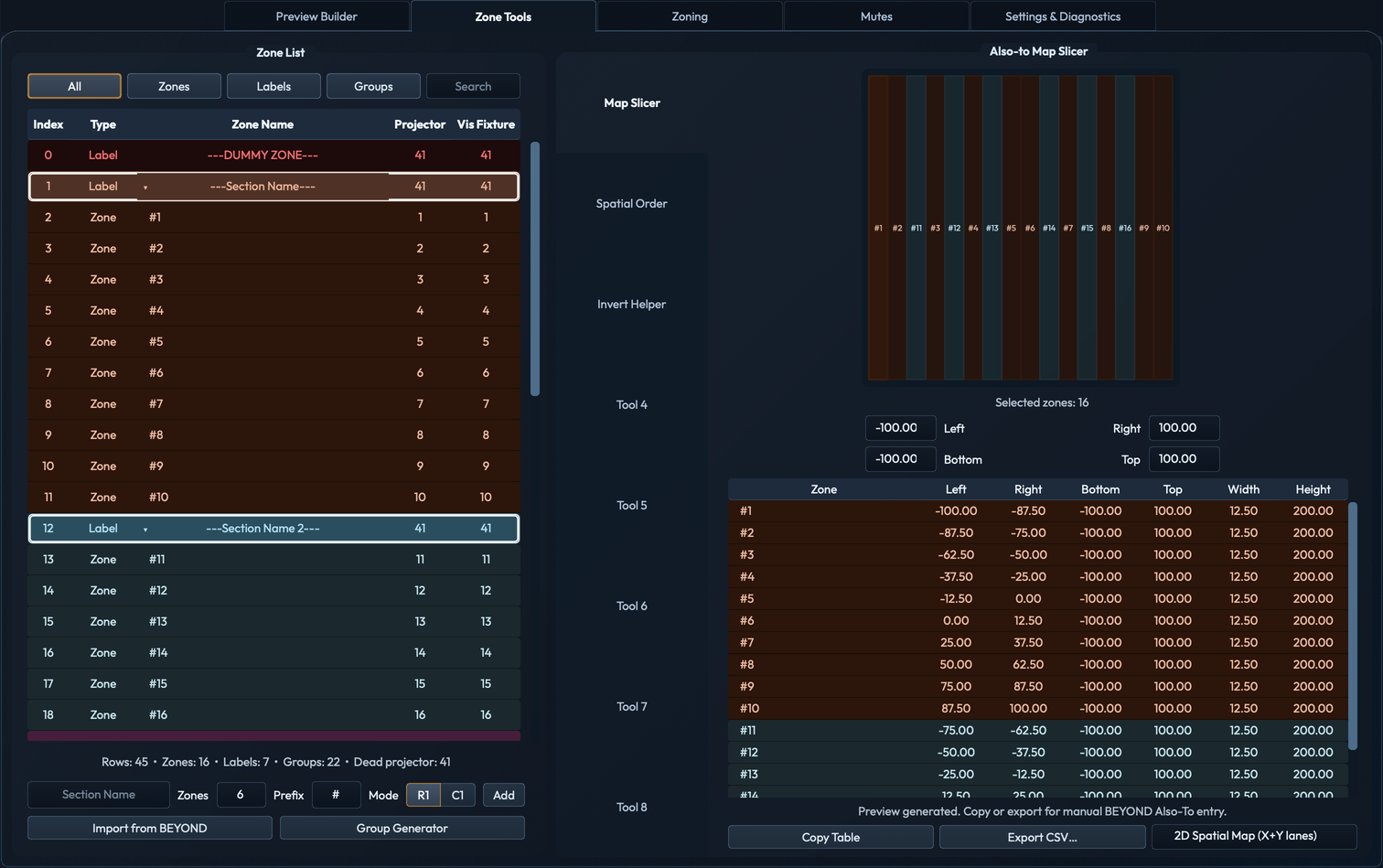
The Spatial Order tool defines the traversal sequence of zones for pixel-map export and ordered group operations. It presents a visual canvas showing zones as color-coded tiles connected by traversal-order lines, alongside a table with one row per zone and a column per ordering mode:
- L < K — left-to-right by X position.
- R < L — right-to-left by X position.
- T > B — top-to-bottom by Y position.
- B > T — bottom-to-top by Y position.
- <= / => — inward (center-out) and outward (edge-in) radial ordering.
- Rnd — random order, seeded by the Seed field so the same seed always produces the same sequence.
- Serp — serpentine (boustrophedon) traversal, alternating direction on each row.
Select a column to set the active ordering. The visual canvas updates immediately to show the resulting traversal path. Copy Order puts the sequence on the clipboard; Export Order… writes it to disk.

Invert Helper
The Invert Helper automates spatial invert patterns by driving six key-effect channels per zone in BEYOND. The workflow is:
- Place six key effects into each BEYOND zone, each sized at
−100×(which effectively nulls that zone's output when active). - Assign a BEYOND channel to each of the six slots in the Invert Helper (slots 1–5 plus the default/off state D).
- Choose an invert type per slot — the app uses projector coordinates to calculate which zones should have that channel muted or unmuted for the chosen spatial pattern.
- Hit Build All or Apply Slot to push the mute/unmute commands to BEYOND, creating the desired invert combination across the rig.
Six invert types are available:
- SR/SL Split — stage-right half vs. stage-left half.
- Every Other Columns — alternating column-wide lanes across the rig.
- Upstage/Downstage — front-of-house half vs. rear half by Y position.
- Checkerboard — alternating zones in a checkerboard grid.
- Mirrored Bands — symmetric horizontal bands radiating from center.
- Mirrored Diagonal — diagonal split mirrored about the rig center.
The slot selector (D · 1 · 2 · 3 · 4 · 5) switches the active view. The status line below the selector reports the slot's invert type, assigned BEYOND channel, how many zones are selected, and whether the slot has been built. The canvas visualizes which zones will be inverted vs. left active for the current slot.
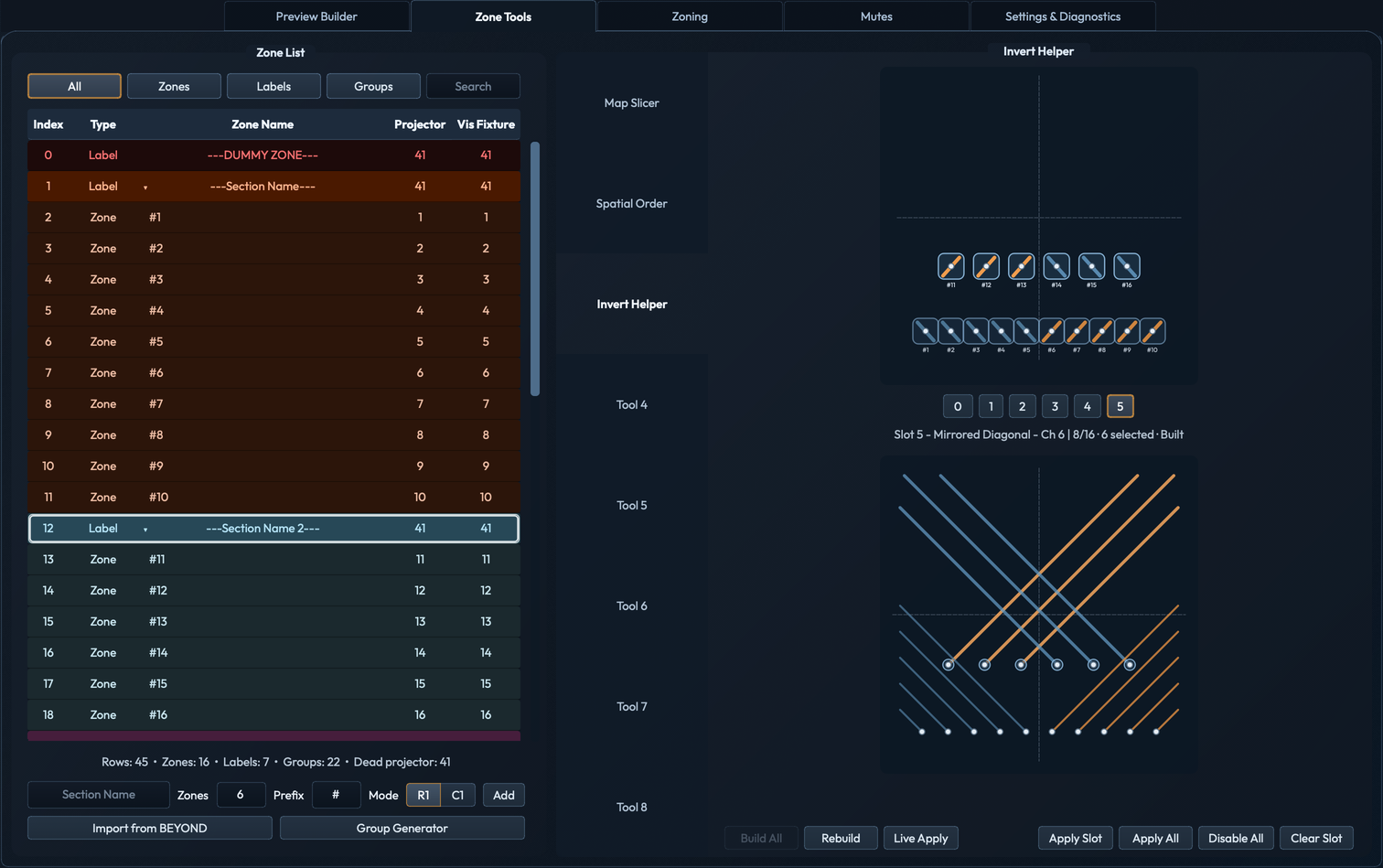
Right-clicking any slot opens a context menu with three actions:
- Assign Invert Type — submenu listing all six spatial patterns.
- Assign Channel… — pick the BEYOND channel this slot drives.
- Clear Channel — remove the channel assignment from this slot.


Group export integrity. CSV export validates group rows
before writing. If a group references a zone name that no longer exists
in the active profile, the export is blocked until you regenerate or
hand-edit the affected group rows so every Also to member
resolves.
§ 05 Zoning
The Zoning tab is the output-plane workspace for User-Generated Correction (UGC), test-frame verification, and laser-output state. Unlike Preview Builder, Zoning can affect live laser output, so the tab is structurally separated and its workflows are explicit.
Zoning runs in either of two modes, picked by the Role setting in Settings & Diagnostics → Remote Session / Node Setup:
- Standalone — single-machine operation against the local BEYOND. No session, no remote clients, no pairing. This is the default and the simplest setup.
- Multi-node session — one or more BEYOND machines (
Node AthroughNode E) share a session, optionally with one or moreRemoteoperator clients.Node Ahosts the session and routes operator intents; each authority node owns its own local BEYOND directly. See 7.6 Remote session for the full role and pairing model.
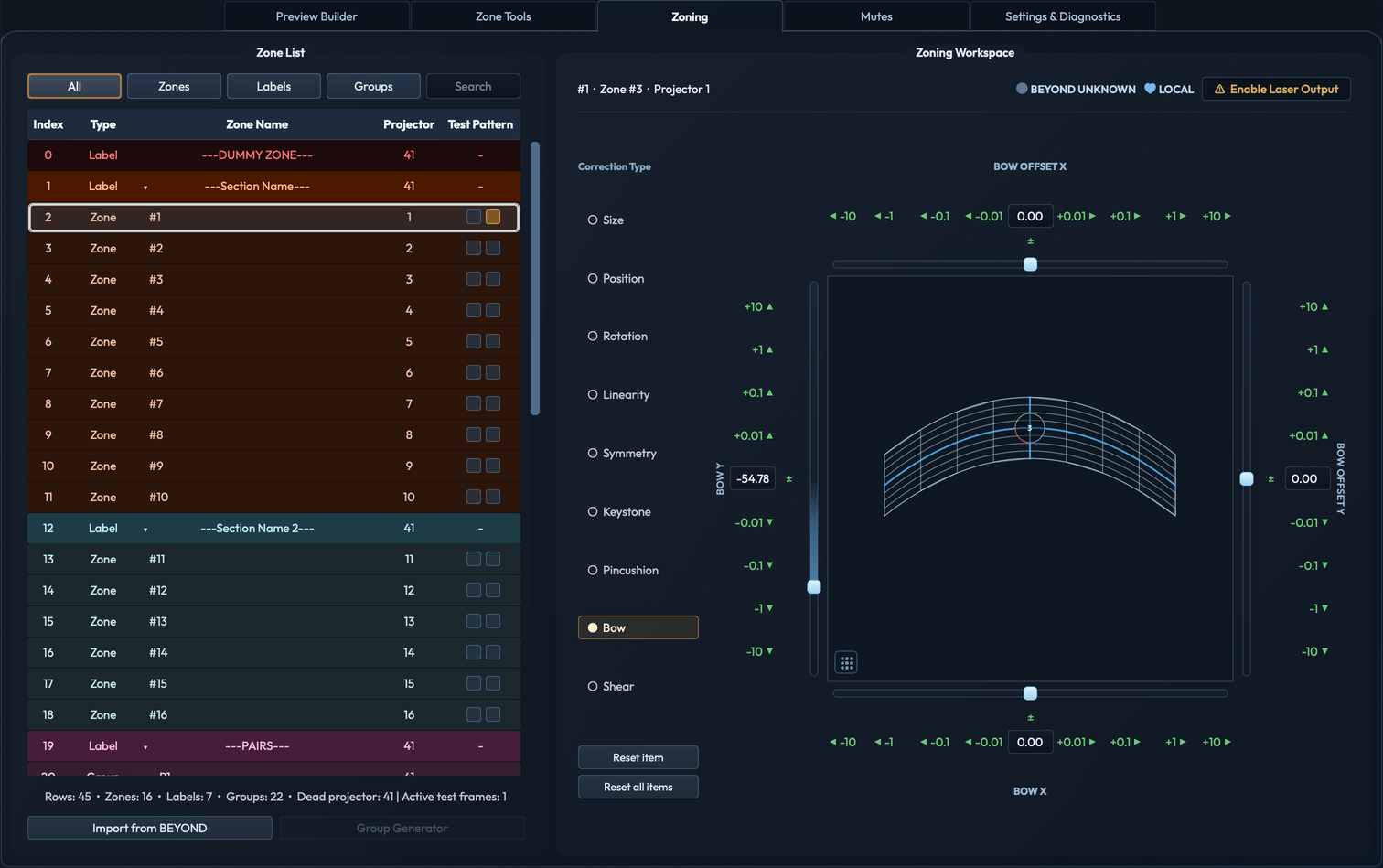
Zoning provides:
- A cumulative warping correction-grid preview for the selected zone, with interactive vertex editing.
- Per-row test-frame controls (Box / Grid) so multiple zones can carry verification patterns simultaneously.
- Guarded laser-output enable/disable for the active output state.
- Guarded cleanup when leaving the active output state — outputs do not silently linger into the next workspace.
- In multi-node sessions: a node chip strip for switching the visible authority node, a whole-zone lease indicator in the header that reports whether the selected zone is currently editable for this operator, and per-node BEYOND-readiness state.
When you navigate away from the Zoning tab while laser output is active or a test frame is running, ZoneTools surfaces a confirmation dialog reporting the current output state and asking whether to proceed. Choosing Yes disables laser output and clears all active test frames before leaving; choosing No keeps you in the Zoning workspace.

Authority gating. In multi-node mode, every BEYOND
write — including Node A's own writes — passes through the
target authority node's runtime. Remote clients send operator
intents only; they never send raw Talk UDP, OSC, or PangoScript
directly to BEYOND. Whole-zone leases must be granted before edits land,
and reconnects do not auto-restore leases — operators reauthenticate and
regain leases before editing again.
Operator responsibility. Zoning interacts with output-plane geometry. JD3 ZoneTools cannot reason about beam paths, audience separation, scan-fail behavior, or any other operational laser-safety concern. The in-process authority watchdog is an in-process claim only — it cannot disable output if the authority app crashes, freezes, or its machine loses power. Hardware emergency-stop, BEYOND's own safety behavior, and operator procedures remain the final safety layer.
§ 06 Mutes
The Mutes tab combines a Live action surface with an Edit-mode configuration workspace. The mode toggle is at the top of the tab and switches the panel below.
6.1 Live mode
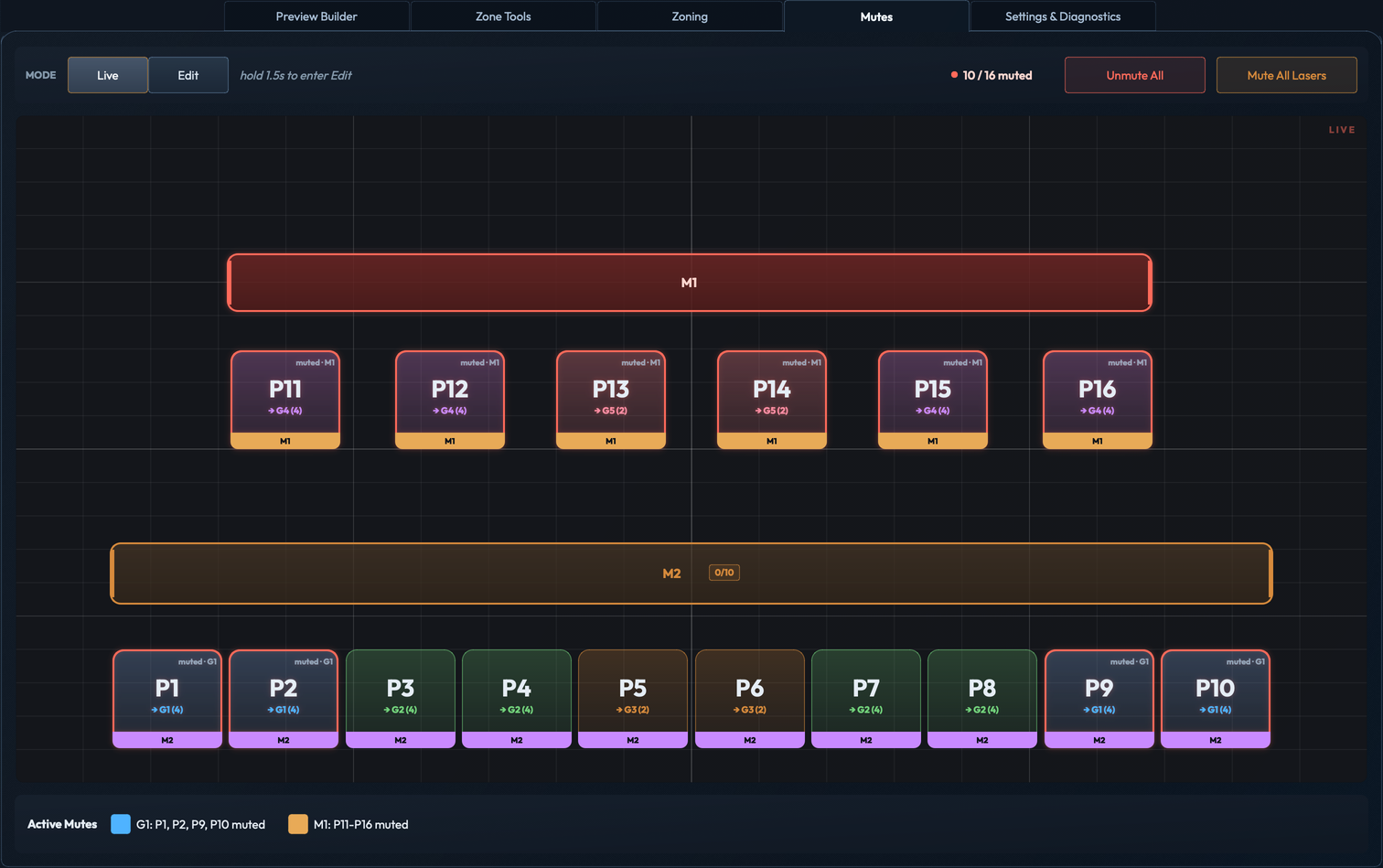
Live mode dispatches mute/unmute commands to BEYOND immediately as you click. The tile layout is projector-position derived — tiles are arranged spatially based on the projector coordinates in the active zone profile, so the workspace mirrors the physical rig rather than an arbitrary list order.
Master group banners span their member tiles; clicking a banner mutes or unmutes the entire master. Individual tiles can be toggled independently. Muted tiles render red; active tiles render amber. The mute counter top-right tracks how many of the configured projectors are currently silenced.
Three global actions:
- Per-projector toggle — click any projector tile to mute or unmute it individually.
- Mute All Lasers — mute every projector in the configured workspace.
- Unmute All — unmute every projector in the configured workspace.
The footer summarizes all currently active mutes by group and master, giving a quick audit trail of what is silenced.
6.2 Edit mode
Edit mode is the configuration workspace for the Live surface and is guarded: switching to Edit mode requires a 1.5-second hold on the Edit toggle before allowing changes that would re-shape the Live tile layout. Edit mode holds:
- Pair groups — pair definitions for matched projector mute bundles.
- Master groups — top-level groupings used by Mute All Lasers / Unmute All.
- Projector placement — the visual layout of projector tiles in Live mode.
- A profile signature validation step so the Mutes config tracks the active zone-list profile and refuses to silently apply against a mismatched workspace.

§ 07 Settings & Diagnostics
The Settings & Diagnostics tab centralizes connection configuration, diagnostics, app preferences, and reset flows.

7.1 Connections
The Connections block configures both transports:
-
Talk UDP — text-command transport from app to BEYOND.
- Host (combo box, default
127.0.0.1) - Port (default
16062) - Setup quick-action:
Local BEYOND
- Host (combo box, default
-
OSC — UDP OSC transport.
- BEYOND Host (default
127.0.0.1) - Send Port — app → BEYOND, default
8000 - Receive Port — BEYOND → app, default
7000
- BEYOND Host (default
Quick host-picker buttons are available for switching between loopback and a remote BEYOND host. A guidance label below the fields explains the configured authority direction, and an OSC return-target label confirms the listener address BEYOND should report back to.

7.2 Live probe
The Live Import Advanced block tunes the Import from BEYOND behavior:
- Probe start index — first zone index to probe.
- Probe delay (ms) — inter-probe delay to avoid flooding the BEYOND Talk UDP listener.

7.3 Preview Builder defaults
Per-app defaults that affect canvas authoring:
- Nudge Step — keyboard nudge increment for selected zones.
- Size Nudge — keyboard size-nudge increment.
- Grid Step — canvas grid spacing.
- Column Order — default column ordering used by the layout tools and Group Generator column family.
These same values are reachable from the Settings menu in the menu bar.

7.4 Apply diagnostics
The Live Apply Log (the per-channel "Apply Diagnostics" surface) is the operator's confirmation surface for Send Selected, Send All, Auto Apply, and probe activity. It renders an NDJSON event stream — one JSON object per line — covering per-message dispatch results, batch summaries, and transport errors.

preview_apply_summary events — each reports message count, error count, the trigger that fired the send (live), and "ok": true.Verbosity selects between two presets:
- Verbose — every message and intermediate transport event.
- Minimal — summary-level results only.
Action buttons:
- Save NDJSON… — file dialog, exports the current diagnostics buffer to a chosen path.
- Quick Save — writes diagnostics to the app logs folder with an auto-generated filename.
- Clear Apply Diagnostics — empties the in-memory buffer and resets the panel.
When a partial batch send fails (e.g. Talk UDP packet loss mid-batch or OSC writeback timeout on a subset), the diagnostics summary preserves a sent-prefix marker so it is clear which messages landed and which did not, rather than reporting the whole batch as either fully successful or fully failed.
7.5 I/O Health
The I/O Health rows (within the Diagnostics block) summarize the three transport endpoints at a glance:
| Channel | Reports |
|---|---|
| Talk UDP | Configured endpoint and most recent send health. |
| OSC Send | Configured app → BEYOND endpoint and send health. |
| OSC Listener | Configured BEYOND → app listener and inbound traffic state. |
Each row shows the resolved address:port and a Last Result string. Before any traffic, all three read No traffic yet (or Inactive for the listener) — that is normal on a freshly opened app and is replaced once the first send or callback lands.

7.6 Remote session
The Remote Session / Node Setup panel configures whether this machine runs Standalone or as part of a multi-node Zoning session. It is the single entry point for picking a role, choosing the control-network adapter, and exchanging a pairing passcode. The runtime ships in v2.73.0; remote operation is opt-in.
Roles
| Role | What it does |
|---|---|
| Standalone | Local-only operation against the local BEYOND. No session, no transport, no pairing. Default. |
| Node A | Local authority for this BEYOND and session host. Generates the pairing passcode and routes operator intents to other authority nodes and remote clients. There is exactly one Node A per session. |
| Node B – Node E | Local authority for an additional BEYOND machine. Joins Node A's session with the passcode. Owns its own BEYOND Talk/OSC; remote intents bound for this BEYOND are routed through this node's authority runtime. |
| Remote | Operator-only client. Joins Node A with the passcode and sends operator intents to whichever authority node it has selected. Cannot send raw Talk UDP, OSC, or PangoScript. |
Control network and port
Remote-session traffic uses authenticated WSS (TLS) on a control network distinct from projector-output networks. The default endpoint is wss://<node-a-control-ip>:17062/session. The setup panel exposes:
- Control Network — pick the local IPv4 adapter the app should bind for remote-session traffic. Listed adapters are detected at runtime.
- Control Port — default
17062, configurable. If the configured port is unavailable at startup, the panel surfaces a blocking error instead of silently picking another port — that is intentional, so port collisions surface during show setup, not during a show.
Pairing and trust
- Node A displays a short-lived 4–6 digit pairing passcode on demand. The passcode is session-only and is never persisted to disk. Use Refresh to rotate it.
- Node B–Node E and Remote roles enter the passcode along with
Node A's control-network IP to join. - On first pairing,
Node A's TLS certificate is pinned to the savedNode Aprofile. Subsequent reconnects validate against the pinned certificate. - After acceptance,
Node Aissues a longer random session credential over the authenticated transport. Credentials and tokens are never displayed in Settings. - Repeated invalid passcodes on the pairing socket are bounded — the pre-auth socket is closed after the configured failure budget, while a valid join inside the budget still succeeds.


What multi-node mode does not include in v1
- Direct remote Talk UDP, OSC, or PangoScript control by remote clients — every BEYOND write goes through a target authority node's runtime.
- Cloud relay or internet-hosted coordination — pairing is local-network only.
- Grouped multi-node bulk edit/apply.
- Replacement for hardware emergency-stop or BEYOND's own safety behavior.
§ 08 Reference: menus
File
| Item | What it does |
|---|---|
| Import CSV… | Load a BEYOND zone CSV export into the active profile. |
| Export CSV… | Write the active profile as a BEYOND-compatible zone CSV. |
| Load Stage Plot Overlay… | Pick a reference image (PDF / PNG / JPG / BMP) for canvas backdrop. |
| Edit Stage Plot Overlay… | Position, scale, and opacity controls for the loaded overlay. |
| Clear Stage Plot Overlay | Remove the loaded overlay. |
Edit
| Item | What it does |
|---|---|
| Undo | Undo the most recent edit on the zone list / canvas. |
| Redo | Redo the most recent undone edit. |
Settings
| Item | What it does |
|---|---|
| Reset Settings… | Reset app preferences to defaults (with confirmation). |
| Nudge Step… | Configure the keyboard nudge increment. |
| Size Nudge Step… | Configure the keyboard size-nudge increment. |
| Grid Step… | Configure the canvas grid spacing. |
| Column Ordering… | Configure default column ordering for layout / Group Generator. |
Tools
| Item | What it does |
|---|---|
| Export Group Membership Report… | Write a per-group membership report to a chosen path. |
Help
| Item | What it does |
|---|---|
| Open User Manual | Open this manual. Falls back to the GitHub-hosted copy if the bundled file is unreadable. |
| Open Changelog | Open CHANGELOG.md. Same GitHub fallback. |
| About JD3 ZoneTools… | Version, build commit (when available), and the brief app description. |
Zone list context menus
Right-clicking any row in the zone list (in both Preview Builder and Zone Tools) opens a context menu. Available items depend on the row type clicked and the current selection state.
Zone rows
| Item | Notes |
|---|---|
| Edit name | Inline rename. Disabled for the dummy-zone row. |
| Batch rename selected… | Rename multiple rows at once. Requires 2+ rows selected; not available on dummy rows. |
| Change type → Zone / Label / Group | Convert the row in place. Target type must differ from current; dummy rows are exempt. |
| Create Group | Wrap the selection into a new Group row. Requires at least one zone row selected. |
| Insert → Section Label Above / Below | Insert a new label row adjacent to this row. Disabled for dummy rows. |
| Insert → Zone Row Below / Group Row Below | Insert a new row directly below. |
| Add → Zone Row / Group Row / Section Label | Append a new row at the end of the list. |
| Duplicate row | Insert a copy of this row below it. Disabled for dummy rows. |
| Delete row | Remove this row. Disabled for dummy rows. |
| Fold → Fold all groups / Fold all labels | Collapse expanded groups or sections. Each option only appears when at least one group or section is currently expanded. |
Label rows (section labels and helper-bucket labels)
| Item | Notes |
|---|---|
| All Zone row items | See above — same set applies. |
| Section color → Assign section color… / Clear section color | Override the color key for this section. Clear only shown when an override exists. |
| Rebuild Groups | Open Group Generator scoped to this helper bucket (e.g. ---PAIRS---). Only shown on helper-bucket label rows. |
| Delete section | Remove the entire labeled section. Only shown in the Preview Builder zone list. |
Group rows
| Item | Notes |
|---|---|
| All Zone row items | See above — same set applies. |
| Group members → Replace with selection | Overwrite this group's Also to list with the currently selected zone rows. |
| Group members → Add selection as group members | Append selected zone rows to the existing member list. |
| Group members → Remove selection from group members | Remove selected zone rows from the member list. |
| Group members → Add member… | Manually enter a zone name to add to the member list. |
| Group members → Sort members | Sort the Also to list alphabetically. |
| Group members → Clear members | Empty the Also to list. |
| Section color → Assign / Clear | Color override for this group row. Clear only shown when an override exists. |
Member rows
| Item | Notes |
|---|---|
| Edit member… | Edit the zone-name reference for this member entry. |
| Add → Zone Row / Group Row / Section Label | Append a new row at the end of the list. |
Empty area (no row clicked)
| Item | Notes |
|---|---|
| Add Zone Row | Append a new zone row. |
| Add Group Row | Append a new group row. |
| Add Section Label | Append a new label row. |
| Fold → Fold all groups / Fold all labels | Only shown when at least one group or section is expanded. |
Preview Builder canvas context menu
Right-clicking on the 2D Preview canvas opens a context menu. Items that require a selection are disabled when nothing is selected. A few items only appear when the click lands on a zone tile rather than empty space.
| Item | Notes |
|---|---|
| Create Group | Wrap the current selection into a new Group row. Requires at least one zone selected. |
| Copy Selection | Copy selected zone rows to the clipboard. Requires a selection. |
| Paste Selection | Paste clipboard rows into the zone list. Only enabled when the clipboard holds zone rows. |
| Align selected to this X | Align all selected zones to the X position of the clicked zone. Only shown when clicking on a zone; requires 2+ selected. |
| Align selected to this Y | Align all selected zones to the Y position of the clicked zone. Only shown when clicking on a zone; requires 2+ selected. |
| Distribute selected from this X | Distribute selected zones evenly starting from the clicked zone's X. Only shown when clicking on a zone; requires 2+ selected. |
| Distribute selected from this Y | Distribute selected zones evenly starting from the clicked zone's Y. Only shown when clicking on a zone; requires 2+ selected. |
| Arrange As → Circle… | Arrange selected zones in a circle. Requires 2+ selected. |
| Arrange As → Square… | Arrange selected zones in a square grid. Requires 2+ selected. |
| Snap Selected to Grid / Snap This Projector to Grid | Snap to the current grid step. Label changes to Snap This Projector when a single zone is clicked. |
| Auto Clean Up | Apply automatic spacing and alignment cleanup to the selection. Requires 1+ selected. |
| Show Projections | Toggle the projection-line overlay on the canvas. Checkable; persists across sessions. |
| Show Fill | Toggle the filled-region overlay. Only enabled when Show Projections is active. |

§ 09 Reference: keybindings
Global
| Combo | Action |
|---|---|
Cmd+Z / Ctrl+Z | Undo the most recent zone-list or canvas edit. |
Cmd+Shift+Z / Ctrl+Shift+Z / Ctrl+Y | Redo. |
Preview Builder canvas
| Combo | Action |
|---|---|
Cmd+A / Ctrl+A | Select all zones. |
Cmd+C / Ctrl+C | Copy selected zone rows to the clipboard. |
Cmd+V / Ctrl+V | Paste clipboard rows into the zone list. |
Delete | Delete selected zone rows. |
Escape | Clear canvas selection. |
← → ↑ ↓ | Nudge selected zones by Nudge Step. |
Width and height resizing uses the W−/W+/H−/H+ panel buttons (by Size Nudge Step) — there are no keyboard equivalents for size nudging.
Zone list (Zone Tools)
| Combo | Action |
|---|---|
Delete | Delete selected rows. |
Ctrl+Shift+↑ | Move selected rows up one position. |
Ctrl+Shift+↓ | Move selected rows down one position. |
Mutes workspace
| Combo | Action |
|---|---|
Return / Enter | Commit a master-rail name edit. |
Escape | Cancel a master-rail name edit, or clear projector / master-group selection. |
§ 10 Reference: settings
Settings persist per-user across sessions. Connection settings are the most commonly changed.
| Setting | Default | Purpose |
|---|---|---|
| Talk UDP Host | 127.0.0.1 | BEYOND host for Talk UDP. Override when BEYOND runs on a separate machine. |
| Talk UDP Port | 16062 | BEYOND Talk UDP port. |
| OSC Host (BEYOND Host) | 127.0.0.1 | BEYOND host for OSC sends from the app. |
| OSC Send Port | 8000 | App → BEYOND OSC port. |
| OSC Receive Port | 7000 | BEYOND → app OSC return port (where the local listener binds). |
| Probe start index | profile-dependent | First zone index probed by Import from BEYOND. |
| Probe delay (ms) | profile-dependent | Inter-probe delay during Import from BEYOND. |
| Nudge Step | profile-dependent | Keyboard nudge increment for selected zones. |
| Size Nudge | profile-dependent | Keyboard size-nudge increment. |
| Grid Step | profile-dependent | Canvas grid spacing. |
| Column Order | profile-dependent | Default column ordering for layout / Group Generator. |
| Live Apply Log verbosity | Verbose | NDJSON detail level. |
§ 11 Safety, scope, and data
JD3 ZoneTools biases conservative on three axes:
- Preview vs output separation. Preview Builder and Zone Tools edit preview-plane geometry. Preview sends target the
/b/Zone/{index}/Preview/*OSC endpoint family. They do not alter live laser-output safety geometry. Output-affecting work lives in Zoning (UGC correction, test frames, laser-output controls) and Mutes (live mute/unmute), each with explicit mode guards. - Network behavior. No network traffic until a transport is actively used. Import from BEYOND, Send Selected, Send All, Auto Apply, Mutes Live actions, and Zoning output controls each emit traffic on demand. The Connections defaults are loopback; nothing is sent across the network until you point the hosts elsewhere.
- CSV round-trip integrity. Imports and exports preserve intentional label rows, group rows, dummy zones, and dead-projector rows — they are not silently rewritten. Group export validates that every
Also tomember resolves to a current zone row and refuses the export otherwise.
Out of scope. JD3 ZoneTools is not a show-control tool, cue editor, timeline editor, or emergency-stop tool. Hardware safety, beam-path verification, audience separation, scan-fail behavior, and any other operational laser-safety procedure remain the operator's responsibility, conducted in BEYOND and against the venue's safety system.
JD3 ZoneTools is independent software and is not affiliated with, endorsed by, or sponsored by Pangolin Laser Systems, Inc.
§ 12 Troubleshooting
Import from BEYOND finds zero zones / times out.
If the probe completes without receiving any callbacks, JD3 ZoneTools surfaces a No probe callbacks were captured dialog (Fig 12.1). Confirm Talk UDP and OSC hosts in Settings & Diagnostics match the BEYOND machine. The OSC Receive Port must be bindable on your local machine and reachable by BEYOND on the network — confirm firewall rules allow the listener. Increase Probe delay (ms) on slower BEYOND machines.

Send Selected / Send All shows partial-success in diagnostics.
That is honest reporting, not a bug. Diagnostics preserve a sent-prefix marker when only the leading portion of a batch landed. Re-send the affected zones; if it recurs, raise the probe delay or check BEYOND-side load.
CSV export fails with "group references missing zone".
A group row's Also to list contains a zone name that no longer exists in the active profile. Open the affected group, regenerate through Group Generator, or hand-edit the member list so every entry resolves to a current zone row.
CSV export warns about BEYOND build < 2044.
JD3 ZoneTools writes Also to rows that older builds will not natively re-import. Upgrade BEYOND to build 2044+ for round-trip fidelity, or accept the loss of Also to columns when re-importing on the older build.
Group Generator says my pair groups have unexpected coverage.
On column-style rigs, pair generation starts from mirrored column pairs and falls back to canonical mirrored pairs if columns do not cover every projector. Use the focus action on the Pairs family header to inspect bucket boundaries, drag dividers between projector X stacks to fix coverage, then Generate.
I dragged a divider but nothing changed.
Divider drags snap between projector X stacks; they do not split a vertical stack that shares an X position. If the affected projectors share an X coordinate, adjust the canvas geometry first (or edit the column ordering) so the stacks separate.
Mutes Edit mode warns about a profile signature mismatch.
The Mutes config was authored against a different zone-list profile. Either re-author the Mutes config under the current profile or load the original profile.
Zoning UGC correction grid disappears when I switch tabs.
Expected. Zoning workspace state is bound to the active output session and is cleared by the guarded cleanup when leaving an active output state, so a different workspace cannot inherit half-applied correction. Re-enter the Zoning tab and re-engage the output session to resume.
Apply Diagnostics shows "No traffic yet" indefinitely.
The transport hasn't been used. Send a single zone with Send Selected to verify the path. If diagnostics still report no traffic after a deliberate send, double-check that Connections points at the right host/port and that the configured ports aren't being firewalled or held by another process on the BEYOND machine.
Help → Open User Manual / Open Changelog opens a stale copy.
The bundled docs ship with each release. If the bundled copy is out of date relative to the running version, the menu falls back to the GitHub-hosted copy automatically when the bundled path is unreadable.